Audio Studio
Generate speech from text using AI voices
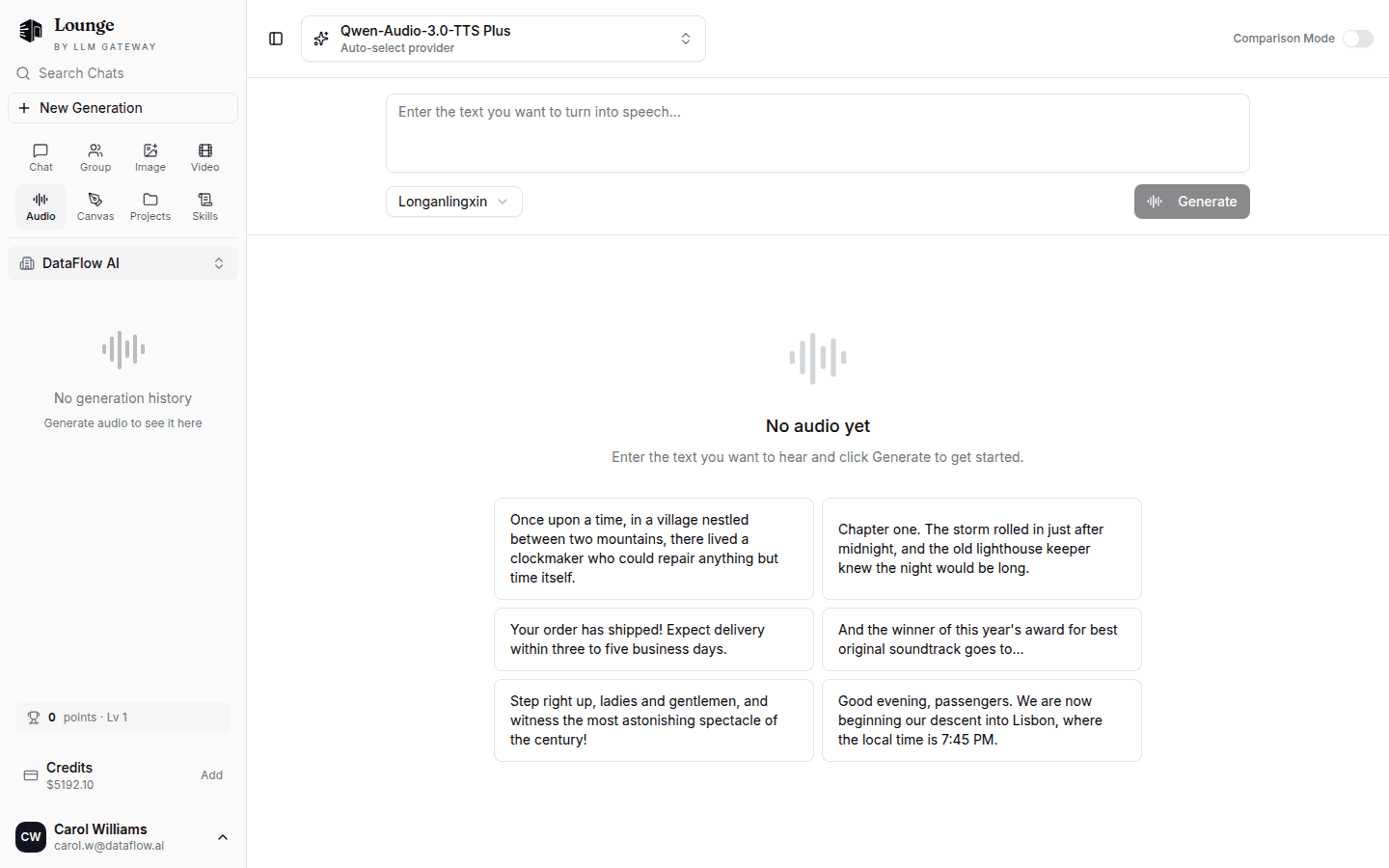
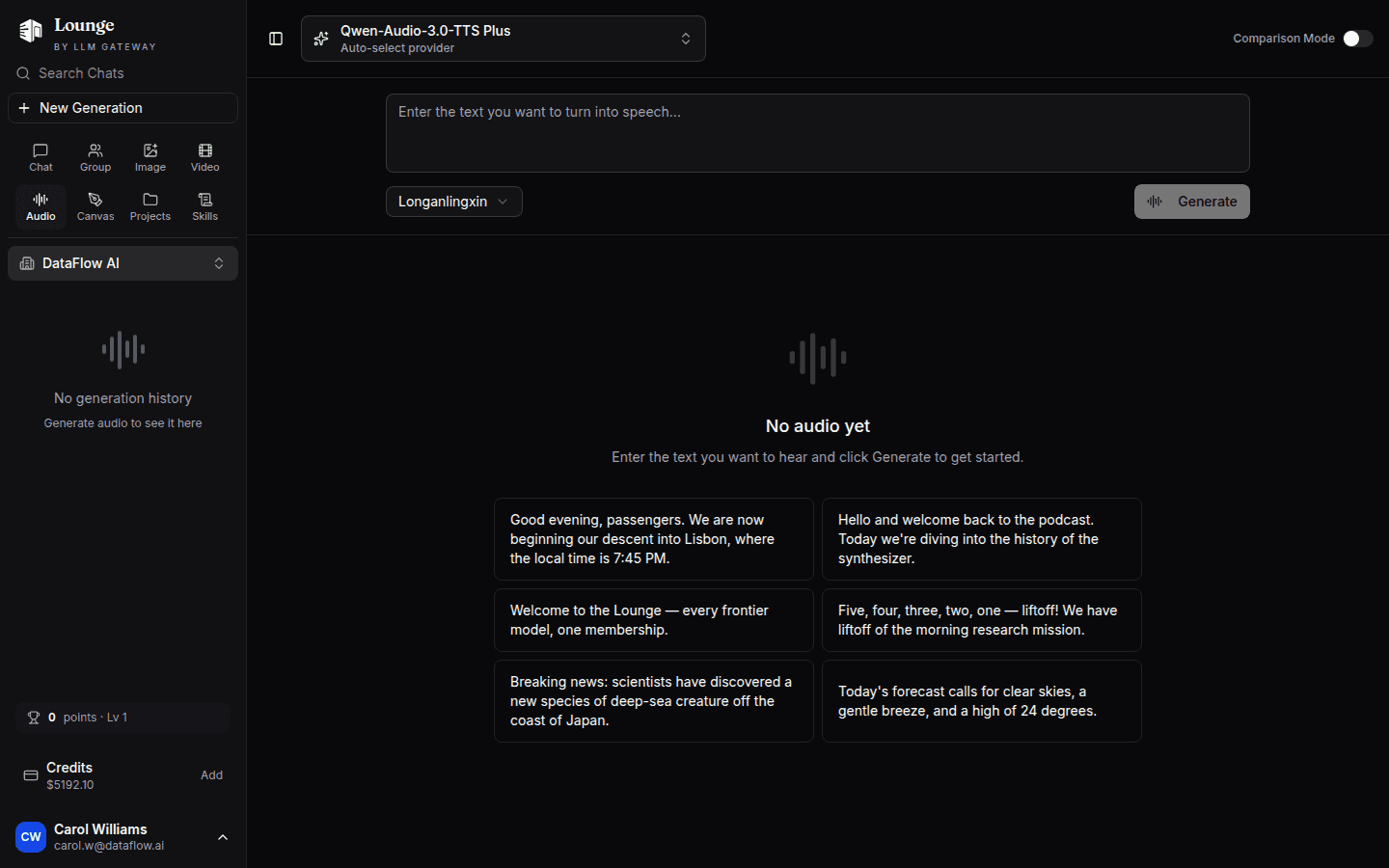
The Audio Studio turns text into speech using the available audio models. Pick a model and a voice, type your text, and play or download the result.
Model Selection
Choose from the supported text-to-speech models in the dropdown. Each model has its own voice roster, output formats, and pricing — the newest models appear first.
Generating Audio
- Select a text-to-speech model
- Pick a voice for the selected model
- Type the text you want spoken — or click one of the sample prompts on the empty state
- Click Generate
- Generated clips appear in the gallery, where you can play or download them
Voices
The voice picker shows the voices supported by the selected model. Changing models updates the available voices and formats.
Comparison Mode
Enable comparison mode to send the same text to multiple models at once and hear the results side by side — useful for choosing a voice and provider before wiring up the Speech Generation API.
History
Generated clips are saved to your audio history so you can revisit, replay, or delete them later.
On iOS
Open Audio Studio in The Lounge to generate speech, compare up to four models, and adjust voices, formats, speed, and delivery instructions where supported. Each comparison model uses its own defaults for unsupported voice or format choices. Play the result, save it to Files, or open the native share sheet. Audio history is shared with the web app and supports search, renaming, and deletion. If history cannot be saved, Retry saving audio preserves the generated clips without generating or charging for them again.
How is this guide?
Last updated on