Voice Calls
Have a live speech-to-speech conversation in Lounge on the web or iOS
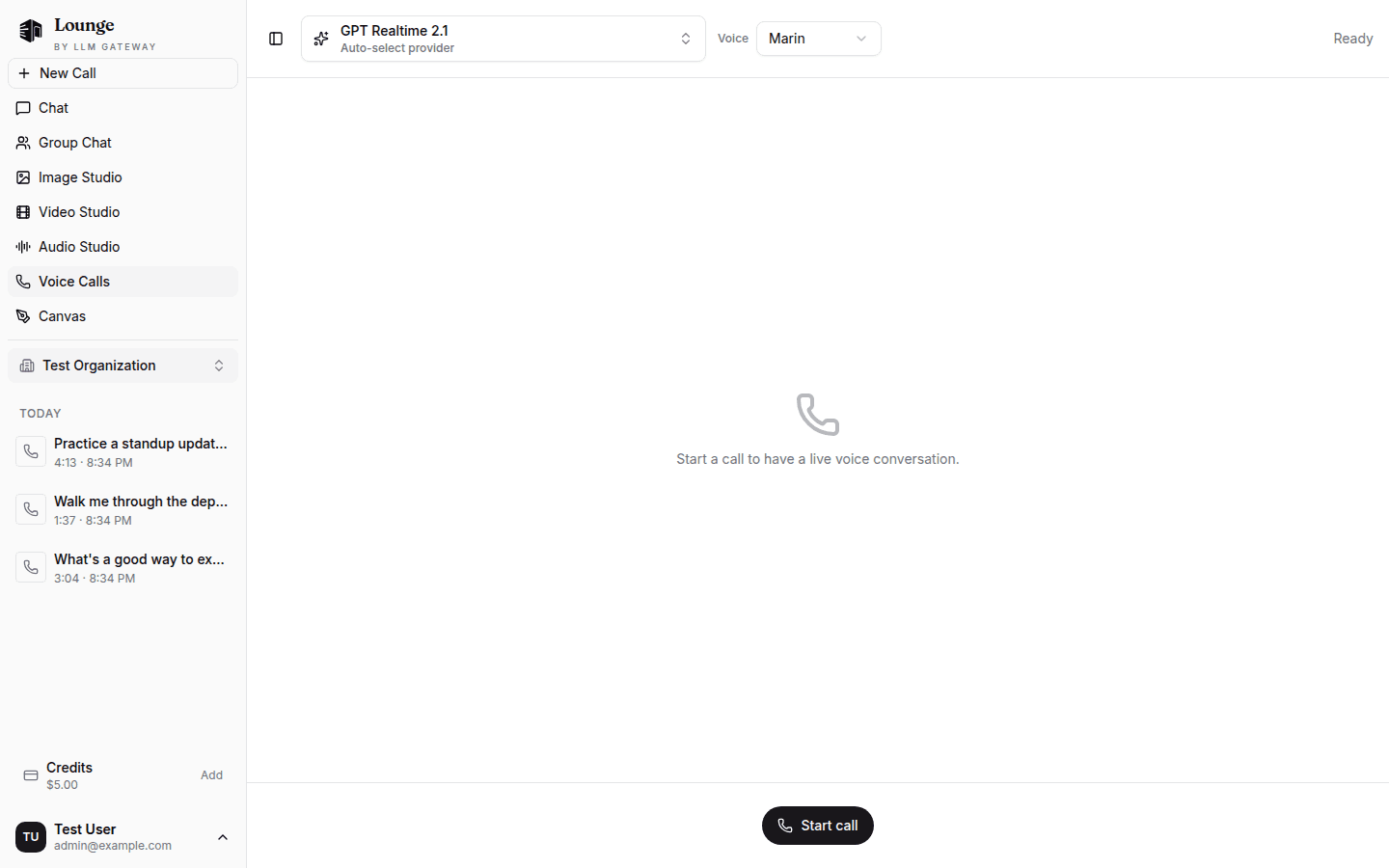
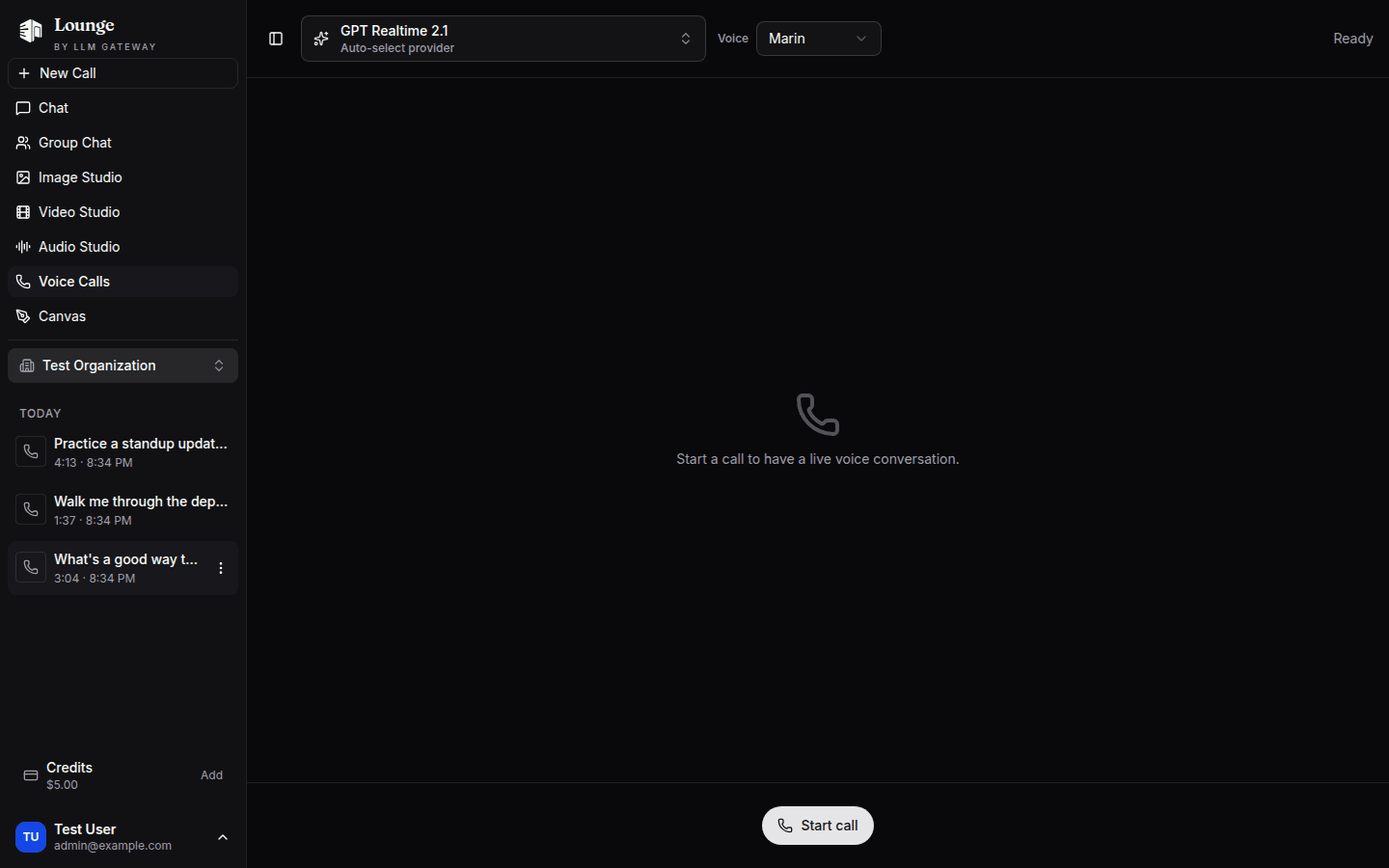
Voice Calls turns Lounge into a phone line to a model. Pick a realtime model and a voice, start the call, and talk — the model listens, answers out loud, and the transcript builds as you go. Every call runs over the same Realtime API your own apps can use.
Voice calls on iOS
In The Lounge, open Voice calls, choose a realtime model and voice, and tap Start voice call. Allow microphone access when prompted. The model answers aloud while both sides of the conversation appear in the transcript. Use Mute microphone to pause sending your audio, or End call to finish. Leaving the screen or backgrounding the app also ends the call and saves it.
Open a saved call to read its transcript, replay assistant turns, or save and share their audio. Search, rename, and delete calls in Call history. Continue this call, where supported, restores the conversation as text and appends new turns to the same history entry. Gemini calls support reading and replaying saved sessions, but cannot continue them.
If saving fails, use Retry saving call before starting another call. The unsaved conversation remains available while the app stays open, including when you leave and return to the screen. Long calls stop storing additional audio at the storage limit; their text transcripts continue.
Live transcription on iOS
In The Lounge iOS app, open Live transcription, choose a model, and tap Start transcription. Allow microphone access when prompted. The selector shows active transcription-capable providers from the model catalogue.
Use Automatic speech detection to complete turns when you pause, where supported. Otherwise, tap Transcribe turn after speaking. Mute microphone stops sending audio while keeping the session connected.
Stop transcription releases the microphone, submits an unfinished turn, and waits up to five seconds for pending text. Stop now ends that wait. Backgrounding the app also stops recording. Partial text remains visible if the connection fails or a turn cannot finish.
Use Copy transcript before leaving the screen. Transcription sessions are not saved to call history. Clear transcript removes the current text after the session ends.
Starting a Call
- Pick a model from the selector — only models with an active realtime mapping appear, newest first
- Pick a Voice — the voice list comes from the selected model, so it changes when you switch models
- Click Start call and allow microphone access when the browser asks
The status label on the right walks through the handshake — preparing audio, requesting the microphone, authorizing, connecting, configuring — and settles on Live with a call timer next to it. The model and voice are locked for the duration of the call; end it to change either.
Your browser never sees an API key. The page mints a short-lived client secret server-side for the call, and the audio itself is streamed as 24 kHz PCM with echo cancellation and noise suppression on.
During the Call
The model uses semantic voice activity detection, so there is no push-to-talk: stop speaking and it answers, start speaking again and it stops to listen. An interrupted answer stays in the transcript marked (interrupted).
| Control | What it does |
|---|---|
| Mute / Unmute | Stops sending your microphone audio without ending the call |
| End call | Hangs up and saves the call to your history |
| Voice activity indicator | Shows who currently has the floor, and your mute state |
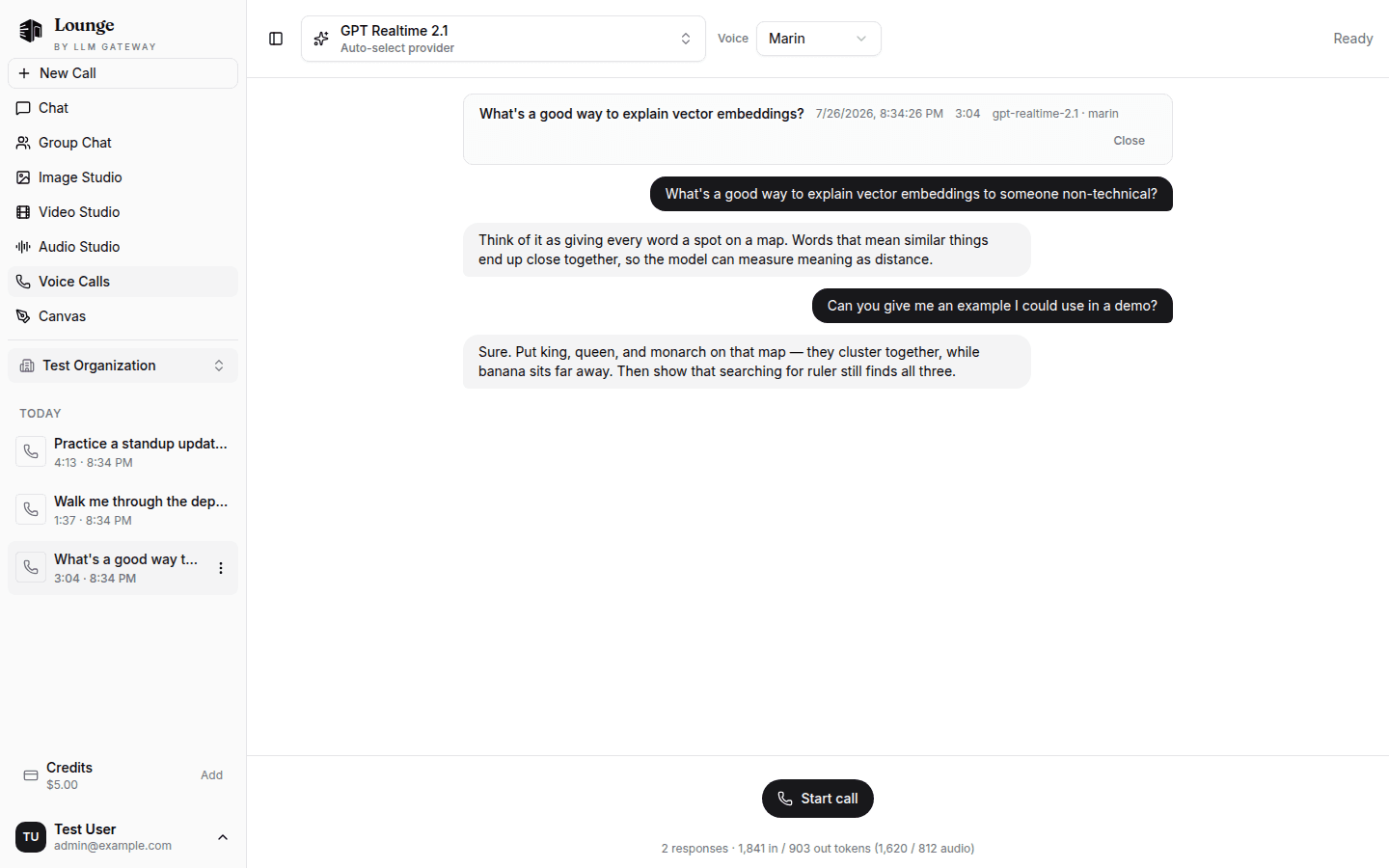
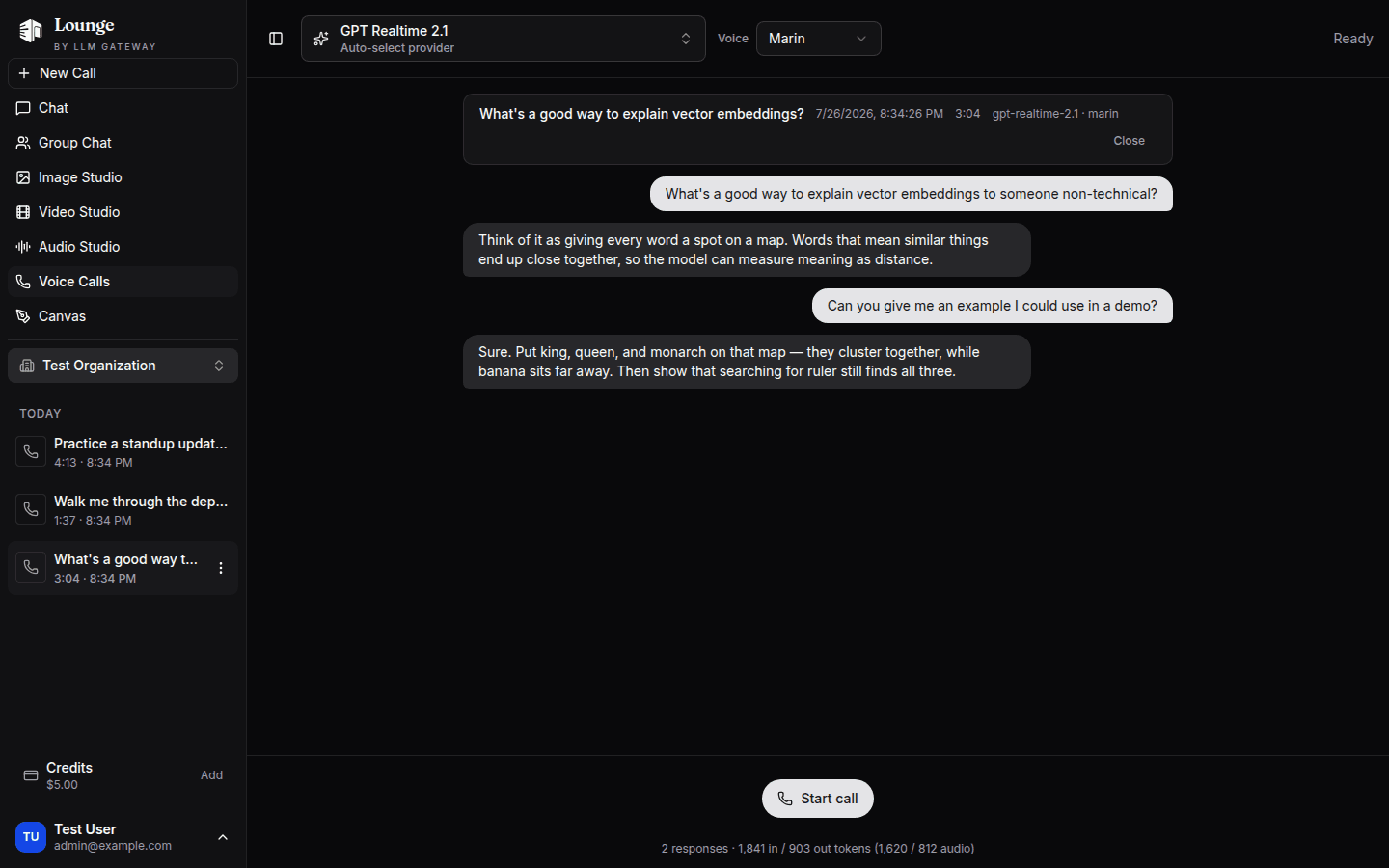
Below the controls, a usage line totals the call: how many responses it took, input and output tokens, and how many of those were audio tokens.
Voice calls are billed to a pay-as-you-go organization with credits, so the organization switcher on this page only lists those — DevPass and Lounge membership workspaces can't place calls. Without one selected, the page asks you to create one in the dashboard first.
Call History
Ended calls are saved per organization and listed in the sidebar, grouped by date, with each call's duration and time. Click one to reopen its transcript, along with the model and voice it used and its token totals. Use the ⋮ menu on a call to rename or delete it, and New Call to get back to a fresh screen.
Calls are titled from your opening line, so history reads like a list of topics. A call you leave mid-conversation — by navigating away or closing the tab — is still saved with whatever was said up to that point.
Using It From Your Own App
The same endpoint backs the Realtime API: connect a WebSocket to wss://api.passingright.io/v1/realtime, authenticate with an API key, and use the standard OpenAI realtime event protocol. For browser clients, mint an ephemeral client secret from your backend instead of shipping a key:
curl -X POST "https://api.passingright.io/v1/realtime/client_secrets" \
  -H "Authorization: Bearer $LLM_GATEWAY_API_KEY" \
  -H "Content-Type: application/json" \
  -d '{
    "expires_after": { "anchor": "created_at", "seconds": 120 },
    "session": { "type": "realtime", "model": "gpt-realtime" }
  }'
Calls made here appear in your activity feed and analytics like any other request, with audio input and output costs broken out.
How is this guide?
Last updated on