OpenCode Desktop Integration
Connect OpenCode Desktop to 200+ models through PassingRight. No config files — just open Settings, connect, and start building.
OpenCode Desktop is the GUI desktop app version of OpenCode — an open-source AI coding agent with a full visual interface for managing providers, models, and sessions. PassingRight is a built-in provider, so setup takes under a minute with no config files required.
Looking for the CLI version? See the OpenCode CLI guide.
Two Built-In Providers
OpenCode ships two PassingRight entries, sharing one endpoint and one API key. PassingRight lists provider-pinned models (anthropic/claude-opus-5, named "Claude Opus 5 (Anthropic)") for pay-as-you-go keys; DevPass (PassingRight) lists canonical models (claude-opus-5) that the gateway routes for you. See the CLI guide for the full comparison.
Using DevPass? Connect DevPass (PassingRight). Provider-pinned routing is not available on coding plans, so canonical model IDs are the ones that work.
Prerequisites
- OpenCode Desktop installed — download for Windows or macOS
- An PassingRight API key — sign up free (no credit card required)
Installation
Download OpenCode Desktop from opencode.ai/download and install it for your platform:
- macOS (Apple Silicon) —
.dmginstaller - macOS (Intel) —
.dmginstaller - Windows —
.exeinstaller
You can also install on macOS via Homebrew:
brew install --cask opencode-desktopSetup
Open Providers Settings
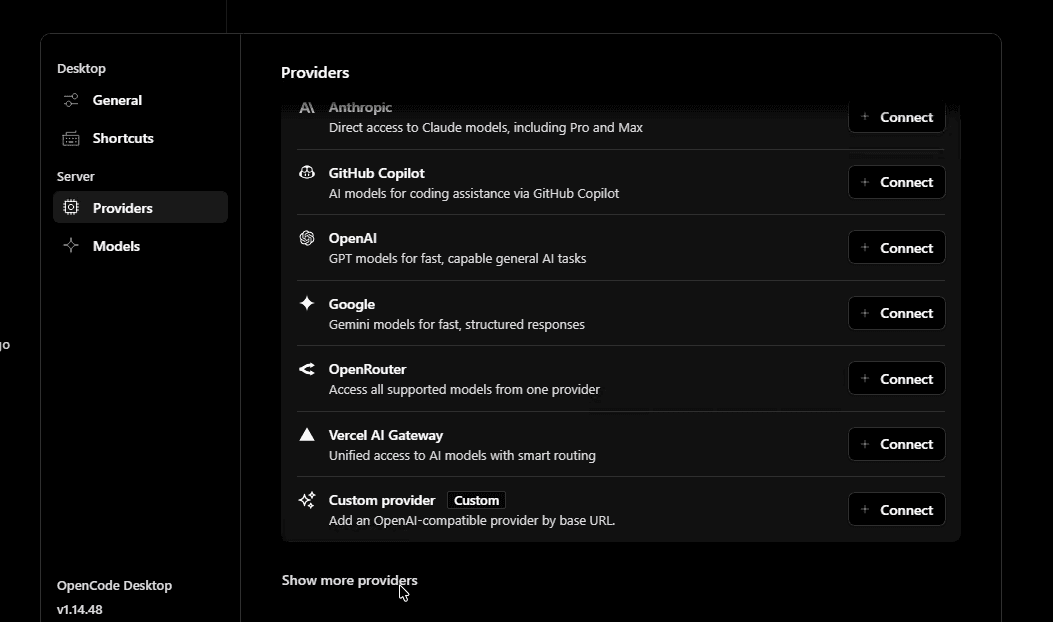
Launch OpenCode Desktop. Click the Providers section in the left sidebar under Server. You'll see the list of built-in providers:
Find PassingRight
Click Show more providers at the bottom of the list, or click + Connect on any entry to open the provider search. Type LLM in the search box — both PassingRight and DevPass (PassingRight) appear under "Other":
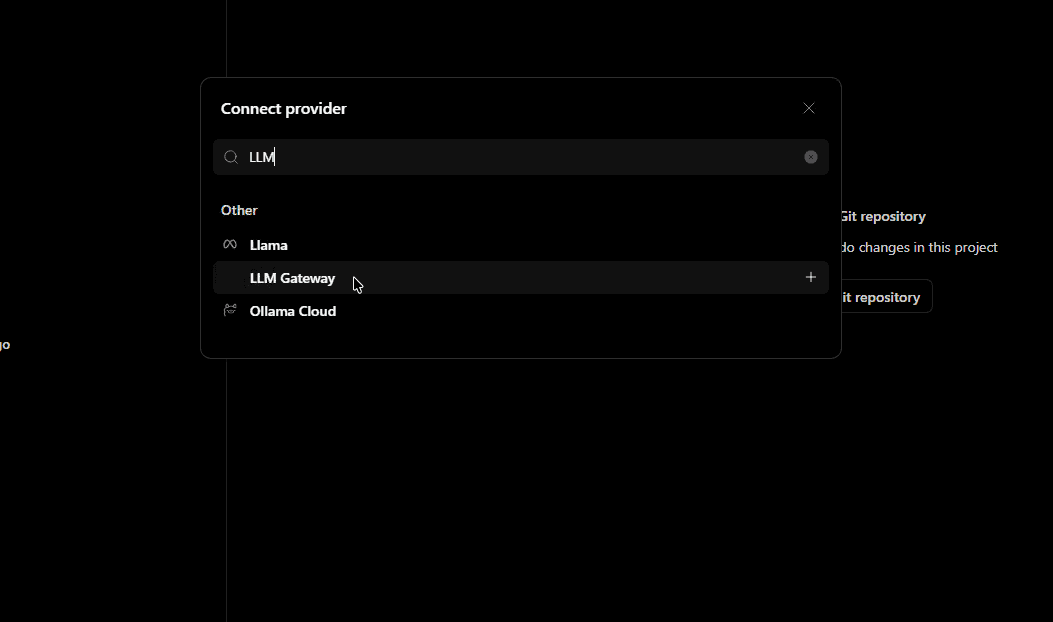
Select the one matching your key. You can connect both — they take the same key, and each contributes its models to the picker.
Enter Your API Key
OpenCode will show the Connect PassingRight dialog. Paste your PassingRight API key (starts with llmgtwy_) and click Continue:
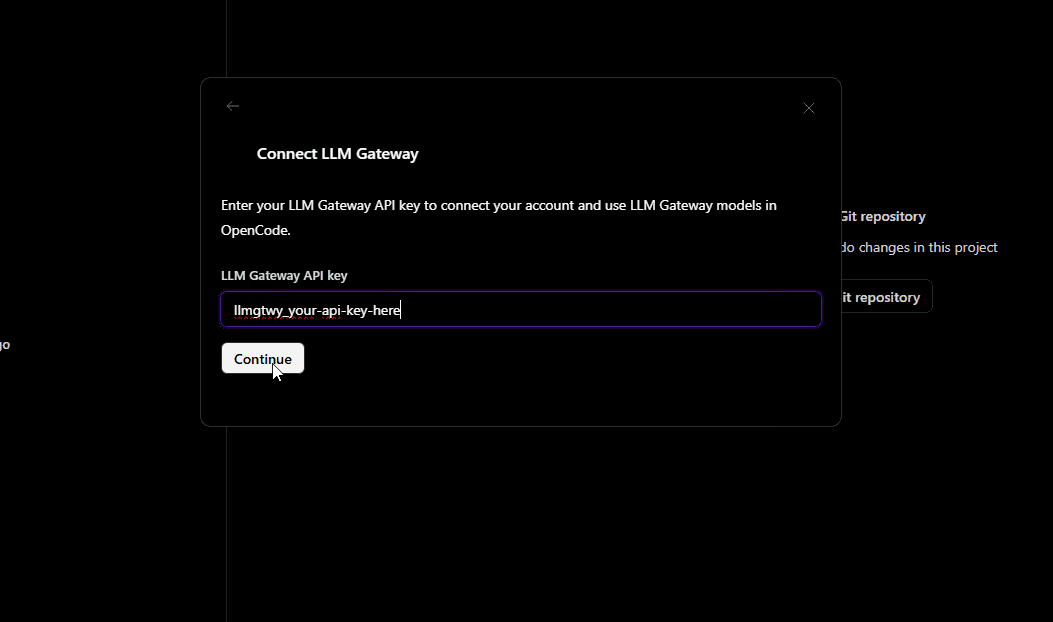
Sign up or log in to your PassingRight dashboard and navigate to API Keys to get your key.
Select a Model
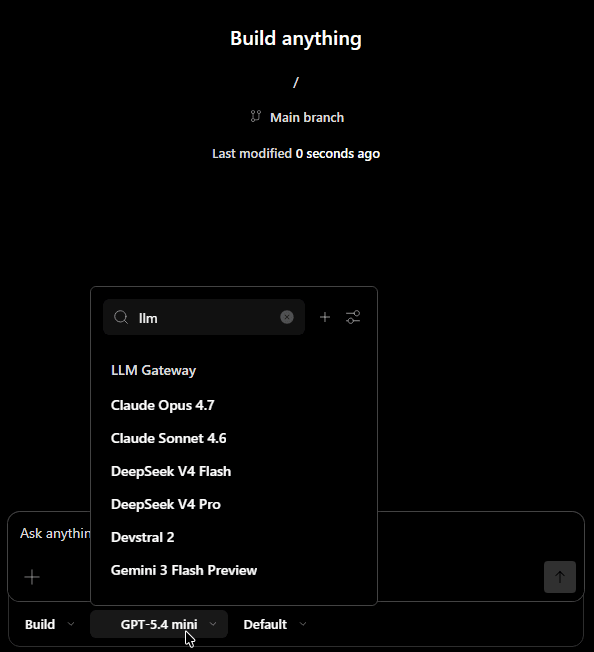
Once connected, open the model picker from the chat input bar. Type llm to filter PassingRight models. Pinned entries carry their serving provider in the name — "Claude Opus 5 (Anthropic)", "GPT-5.5 (Azure)" — while DevPass entries show the canonical name:
Start Building
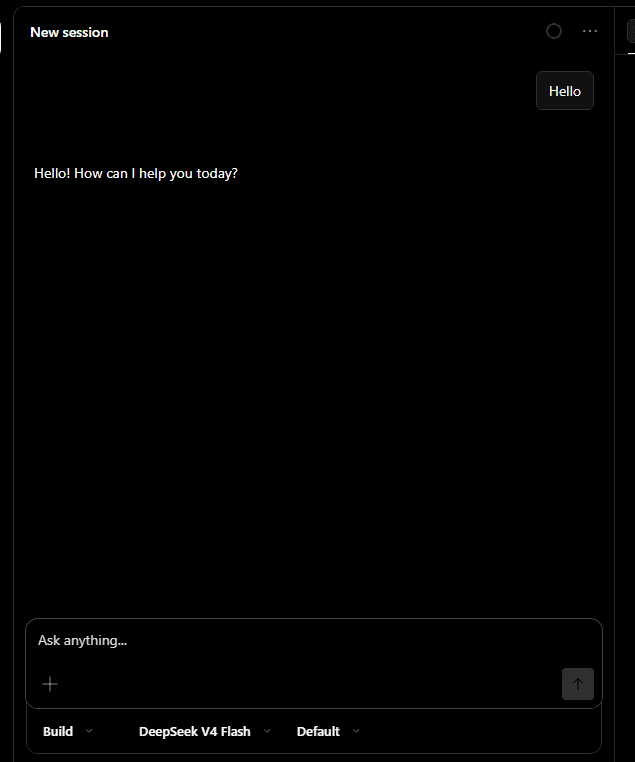
Select a model and start chatting. All requests route through PassingRight — you'll see usage, costs, and logs in your dashboard:
Why Use PassingRight with OpenCode Desktop
- 200+ models — Claude, GPT, Gemini, Llama, DeepSeek, and more from 40+ providers
- One API key — Stop managing separate keys for each provider
- Cost tracking — See exactly what each session costs in your dashboard
- Response caching — Repeated requests hit cache automatically
- Automatic fallback — If a provider is down, requests route to an alternative
- Volume discounts — Check discounted models for savings up to 90%
Switching Models
You can switch models at any time from the model picker in the chat input bar. Click the current model name, type llm to filter to PassingRight models, and select a new one. The switch takes effect immediately for the next message.
Locking to a Specific Provider
Pick a model from the PassingRight entry to choose its upstream provider. PassingRight still fails over to an alternative provider if that one is down; to make the pin strict, pass the X-No-Fallback header via a custom opencode.json in your project root:
{
	"provider": {
		"llmgateway-providers": {
			"options": {
				"headers": {
					"X-No-Fallback": "true"
				}
			}
		}
	}
}
Disabling fallback means requests will fail if the chosen provider is down. See the routing docs for details.
Troubleshooting
PassingRight doesn't appear in provider list
Click Show more providers at the bottom of the Providers page to expand the full list, then search for "LLM".
Authentication errors
Make sure your API key starts with llmgtwy_ and is active. Check your dashboard to confirm the key is valid.
Models not loading after connect
Try disconnecting and reconnecting the provider from Settings > Providers. If models still don't load, check your internet connection and verify the key is valid.
View all available models on the models page.
Need help? Join our Discord community for support and troubleshooting assistance.
How is this guide?